 RodBird
Jan 22, 2016
RodBird
Jan 22, 2016
RETURN to the SUBMIT ARTICLE Page
Blitting hardware was developed to allow large areas of graphics to be copied and pasted in memory without requiring processor cycles. This vastly improved animation and drawing that could be achieved between videosync events, It's kinda old fashioned, my Zx81 didn't have a blitter but my Amstrad and Commodore sure did.
Graphics have evolved still more and now its all "surfaces" and openGL rendering or DirectX rendering, but you can still have a lot of fun with the blitter.
Blitting is usually associated with animation or graphics transformations though it is equally happy stretching, blending, flipping or compressing static images.

So its best to use the Liberty BASIC TIMER statement to control a drawing loop to slow things down and not waste time drawing graphics to the buffer that will never be seen.
While the TIMER uses millisecond values you will find that 16.6ms is the smallest value it can discern. Run the code below and see how the TIMER value jumps in 16.6ms increments. This is because Windows updates it's clock at 60hz.
What is the lesson? Don't try and run your TIMER loop faster than 17ms, the TIMER statement won't run any faster and even if it did you will be drawing graphics to the buffer that will never be seen.
In actual fact animation will run perfectly well at lower speed. The speed of your processor and graphics card will determine what is achievable but stay in tune with your PC, anything between 17ms and 100ms provide watchable animation.
Fantastic result? unbelievably fast? you bet. On my machine which is a middle of the road laptop I rendered the half megabyte of graphics in 420 milliseconds, that's over 2300 frames per second, wow!
Now of course you didn't see anything. First because it was a black screen blitted over a black screen but more importantly the screen buffer was rendered to the LCD or Glass display much more slowly. At 60 frames per second, very much slower indeed. So even if the image was changing you would only see 38 of those 2300 frames.
That's great news, it means that if we need to, we can blit in massive amounts of graphics between video display updates. But neither should we let the blitter run unchecked.
We need to find it's address and would use an API call to do so.
This obtains a ulong number which is the pointer to the Device Context (DC) that Windows created for our graphicbox. So the screen buffer is in fact the DC that Windows has created behind the scenes.
Now we create a copy of that DC.
Then we fill it with some graphics by getting a handle to our "bmp" image and selecting it into the new DC.
And that's all we need to start blitting! DCs are amorphous things, if you select in a large bmp you can have lots of graphics in one location to blit from.
Once you have finished with a DC you must release and delete it.
That's a whistle stop tour of DCs, check these following links for help on API and DCs.
API resource: http://libertybasic.conforums.com/index.cgi?board=api&action=display&num=1175176417&start=
DC Drawing resource: http://babek.info/libertybasicfiles/lbnews/nl101/6.htm
Then I draw a little circle in the remaining 50 pixels. Use the debugger to step through and see what's happening. Now when I start blitting I take the first 225 pixels from the memory DC and blit them to the buffer DC but stretch them width ways up to 500 pixels. In this way you cut out little parts of the memory DC and fill the buffer DC. Next iteration I move the source 5 pixels to the right in the graphics DC and so repetitively move the star background to the left.
Then I cut out the little circle and blit it a couple of times same size into the buffer. Net result a scrolling background with two sprites moving about. Well they would be sprites if I had used TransparentBlt, notice that the circle backgrounds overwrite when they cross over. If I had used TransparentBlt you would just see the white circles.
So there are several call you can make BitBlt, StretchBlt and TransparentBlt each has it's own strength some can flip and mirror some can't, one can do it transparently, basically pick your blitter call by the functionality you wish.
These API calls are well documented elsewhere so I'm not covering the detail here.
Although you won't see much difference between the two techniques (run them side by side) if I was drawing text or a lot more graphics you would. You will see slight hesitatons in the scrolling as Windows grabs some time to do other tasks.
One of the great things about blitting is that you do not use up graphics memory, each DC consumes a finite amount of memory but after that you are just blitting between them and no other graphics memory is consumed.
Its just like having multiple backgrounds in the sprite engine. There is lots of time to draw sprites on top of this moving background. Doing so creates a pretty cool game environment.
Copy this bmp to your own PC
Actually the only barrier is your imagination.
Happy coding
rodbird@hotmail.com
RETURN to the SUBMIT ARTICLE Page
Having fun with the blitter
What is the blitter?
If you like graphics the blitter is going to be your best friend. Back in the early days graphics used to be written to and from a memory location in RAM by the processor. The PC used a videosync timer to poll the memory and paint the graphics to the screen. You had to code carefully to be sure your drawing was finished before the videosync kicked in.Blitting hardware was developed to allow large areas of graphics to be copied and pasted in memory without requiring processor cycles. This vastly improved animation and drawing that could be achieved between videosync events, It's kinda old fashioned, my Zx81 didn't have a blitter but my Amstrad and Commodore sure did.
Graphics have evolved still more and now its all "surfaces" and openGL rendering or DirectX rendering, but you can still have a lot of fun with the blitter.
Blitter Functionality
Blitting swaps one area of graphic for another. The blitter can merge, overwrite or transparently combine the graphics. It can also flip, mirror, stretch or shrink the image as it does so. Animation is achieved by moving one image relative to the other.Blitting is usually associated with animation or graphics transformations though it is equally happy stretching, blending, flipping or compressing static images.
Display Timing
How fast can we show blitted graphics? Notice I said "show", a moden PC's graphics card typically renders screen images at 60hz, or a frame every 16.6ms. Now the blitter can blit much much faster than this but there is little point in blitting for blittings sake if the graphic image is only shown once every 16.6ms.So its best to use the Liberty BASIC TIMER statement to control a drawing loop to slow things down and not waste time drawing graphics to the buffer that will never be seen.
While the TIMER uses millisecond values you will find that 16.6ms is the smallest value it can discern. Run the code below and see how the TIMER value jumps in 16.6ms increments. This is because Windows updates it's clock at 60hz.
What is the lesson? Don't try and run your TIMER loop faster than 17ms, the TIMER statement won't run any faster and even if it did you will be drawing graphics to the buffer that will never be seen.
In actual fact animation will run perfectly well at lower speed. The speed of your processor and graphics card will determine what is achievable but stay in tune with your PC, anything between 17ms and 100ms provide watchable animation.
 for delay=1 to 60
 timenow=time$("ms")
 timer 1,[done]
 wait

 [done]
 print "Delay should be 1ms Delay is ";timenow-time$("ms")
 next delay
How fast is the Blitter?
Lets run some unrestricted code on your machine to see what blitting performance you get. The code will create a copy of your screen, select the current screen image into that and then blit it back to the screen repeatedly. It is important to remember that the blitter is not blitting directly to the screen that you see in front of you but to the memory that defines that screen you see. Lets call it the screen buffer. The blitting will be very fast, you won't see anything but it is happening. Run it now.Fantastic result? unbelievably fast? you bet. On my machine which is a middle of the road laptop I rendered the half megabyte of graphics in 420 milliseconds, that's over 2300 frames per second, wow!
Now of course you didn't see anything. First because it was a black screen blitted over a black screen but more importantly the screen buffer was rendered to the LCD or Glass display much more slowly. At 60 frames per second, very much slower indeed. So even if the image was changing you would only see 38 of those 2300 frames.
That's great news, it means that if we need to, we can blit in massive amounts of graphics between video display updates. But neither should we let the blitter run unchecked.
 nomainwin
 WindowWidth = 600
 WindowHeight = 600
 UpperLeftX = (DisplayWidth-WindowWidth)/2
 UpperLeftY = (DisplayHeight-WindowHeight)/2
 graphicbox #1.g, 50,80,500,300
 textbox #1.t, 50,390, 500,25
 open "Blitter" for graphics_nf_nsb as #1
 print #1, "trapclose [quit]"

 ' set up our bitmaps, open device contexts and store our bitmaps in them

 ' bDC is our screen buffer, (DC handle to the graphicsbox)

 print #1.g, "down; fill black"
 print #1.g, "getbmp bmp 0 0 500 300"
 bDC=GetDC(hwnd(#1.g))

 ' mDC is a copy of the screen in memory

 mDC=CreateCompatibleDC(bDC)
 hBitmap=hbmp("bmp")
 oldBmp=SelectObject(mDC,hBitmap)

 [timeloop]
 now=time$("ms")
 for n= 1 to 1000
 scan
 ' flip the memory image to the screen
 call StretchBlt,bDC,0,0,500,300,mDC,0,0,500,300
 next n
 t=time$("ms")-now
 print #1.t,"Rendered 439Mb of graphics in ";t;" Milliseconds, ";int(1000/t*1000);" FPS"
 wait


 [quit]

 unloadbmp "bmp"
 call ReleaseDC hwnd(#1), gDC
 call DeleteDC mDC
 close #1

 end


 '=============================Window and DC functions=================================
 Function GetDC(hWnd)
 CallDLL #user32, "GetDC",_
 hWnd As ulong,_ 'window or control handle
 GetDC As ulong 'returns device context
 End Function

 Sub ReleaseDC hWnd, hDC
 CallDLL#user32,"ReleaseDC",_
 hWnd As ulong,_ 'window or control handle
 hDC As ulong,_ 'handle of DC to delete
 result As Long
 End Sub

 Function CreateCompatibleDC(hDC)
 CallDLL #gdi32,"CreateCompatibleDC",_
 hDC As ulong,_ 'window DC
 CreateCompatibleDC As ulong 'memory DC
 End Function

 Sub DeleteDC hDC
 CallDLL #gdi32, "DeleteDC",_
 hDC As ulong,_ 'memory DC to delete
 r As Boolean
 End Sub

 Sub StretchBlt hDCdest,x,y,w,h,hDCsrc,x2,y2,w2,h2
 CallDLL #gdi32, "SetStretchBltMode",_
 hDCdest As ulong,_ 'device context
 _COLORONCOLOR As Long,_ 'color reduction mode
 RESULT As Long
 CallDLL #gdi32, "StretchBlt",_
 hDCdest As ulong,_ 'destination
 x As Long,_ 'destination x pos
 y As Long,_ 'destination y pos
 w As Long,_ 'destination width desired
 h As Long,_ 'destination height desired
 hDCsrc As ulong,_ 'source
 x2 As Long,_ 'x location to start from source
 y2 As Long,_ 'y location to start from source
 w2 As Long,_ 'width desired from source
 h2 As Long,_ 'height desired from source
 _SRCCOPY As long,_ 'dwRasterOperation
 RESULT As Boolean
 End Sub


 Function SelectObject(hDC,hObject)
 CallDLL #gdi32,"SelectObject",_
 hDC As ulong,_ 'memory device context
 hObject As long,_ 'handle of object
 SelectObject As long 'returns previously selected object
 End Function
Device Contexts
The blitter is made available to us via API calls from Liberty BASIC. Obviously before we can blit anything we need somewhere to blit from and somewhere to blit to. Typically we would blit to the screen buffer. So how do we access this buffer?We need to find it's address and would use an API call to do so.
 gDC=GetDC(hwnd(#1.g))

 Function GetDC(hWnd)
 CallDLL #user32, "GetDC",_
 hWnd As ulong,_ 'window or control handle
 GetDC As ulong 'returns device context
 End Function
This obtains a ulong number which is the pointer to the Device Context (DC) that Windows created for our graphicbox. So the screen buffer is in fact the DC that Windows has created behind the scenes.
Now we create a copy of that DC.
 mDC=CreateCompatibleDC(gDC)

 Function CreateCompatibleDC(hDC)
 CallDLL #gdi32,"CreateCompatibleDC",_
 hDC As ulong,_ 'window DC
 CreateCompatibleDC As ulong 'memory DC
 End Function
Then we fill it with some graphics by getting a handle to our "bmp" image and selecting it into the new DC.
 hBitmap=hbmp("bmp")
 oldBmp=SelectObject(mDC,hBitmap)

 Function SelectObject(hDC,hObject)
 CallDLL #gdi32,"SelectObject",_
 hDC As ulong,_ 'memory device context
 hObject As long,_ 'handle of object
 SelectObject As long 'returns previously selected object
 End Function
And that's all we need to start blitting! DCs are amorphous things, if you select in a large bmp you can have lots of graphics in one location to blit from.
Once you have finished with a DC you must release and delete it.
 call ReleaseDC hwnd(#1), gDC
 call DeleteDC mDC

 Sub ReleaseDC hWnd, hDC
 CallDLL#user32,"ReleaseDC",_
 hWnd As ulong,_ 'window or control handle
 hDC As ulong,_ 'handle of DC to delete
 result As Long
 End Sub

 Sub DeleteDC hDC
 CallDLL #gdi32, "DeleteDC",_
 hDC As ulong,_ 'memory DC to delete
 r As Long
 End Sub
That's a whistle stop tour of DCs, check these following links for help on API and DCs.
API resource: http://libertybasic.conforums.com/index.cgi?board=api&action=display&num=1175176417&start=
DC Drawing resource: http://babek.info/libertybasicfiles/lbnews/nl101/6.htm
Basic Blitting
Lets draw ourselves some graphics to blit from. We use the left 225 pixels of the screen to draw some stars and then replicate that in the next 225 pixels giving us a 450 pixel image that will scroll without an obvious end. Confused? Don't worry the tutorial is about blitting not game graphics (That might be next).Then I draw a little circle in the remaining 50 pixels. Use the debugger to step through and see what's happening. Now when I start blitting I take the first 225 pixels from the memory DC and blit them to the buffer DC but stretch them width ways up to 500 pixels. In this way you cut out little parts of the memory DC and fill the buffer DC. Next iteration I move the source 5 pixels to the right in the graphics DC and so repetitively move the star background to the left.
Then I cut out the little circle and blit it a couple of times same size into the buffer. Net result a scrolling background with two sprites moving about. Well they would be sprites if I had used TransparentBlt, notice that the circle backgrounds overwrite when they cross over. If I had used TransparentBlt you would just see the white circles.
 nomainwin
 WindowWidth = 600
 WindowHeight = 600
 UpperLeftX = (DisplayWidth-WindowWidth)/2
 UpperLeftY = (DisplayHeight-WindowHeight)/2
 graphicbox #1.g, 50,80,500,300
 textbox #1.t, 50,390, 500,25
 open "Blitter" for graphics_nf_nsb as #1
 print #1, "trapclose [quit]"

 ' set up our bitmaps, open device contexts and store our bitmaps in them

 ' bDC is our screen buffer, (DC handle to the graphicsbox)

 print #1.g, "down; fill black ; color white"
 for x = 1 to 50
 print #1.g, "place ";int(rnd(0)*250);" ";int(rnd(0)*300)
 print #1.g, "size ";int(rnd(0)*4)
 print #1.g, "circle ";int(rnd(0)*3)
 next x
 print #1.g, "getbmp bmp 0 0 225 300"
 print #1.g, "drawbmp bmp 225 0"
 print #1.g, "place 475 40 ; size 1 ;circle 20"
 unloadbmp "bmp"
 print #1.g, "getbmp bmp 0 0 500 300"
 bDC=GetDC(hwnd(#1.g))

 ' mDC is a copy of the screen in memory

 mDC=CreateCompatibleDC(bDC)
 hBitmap=hbmp("bmp")
 oldBmp=SelectObject(mDC,hBitmap)

 ' set up a repeating loop to draw our graphics
 x=-1
 y=-1
 timer 17, [timedloop]
 wait

 ' draw from the memory to the buffer
 [timedloop]
 x=x+1
 if x=225 then x=0
 y=y+1
 if y=300 then y=0
 call StretchBlt,bDC,0,0,500,300,mDC,x,0,225,300
 call StretchBlt,bDC,250,y,40,40,mDC,455,20,40,40
 call StretchBlt,bDC,250,300-y,40,40,mDC,455,20,40,40


 wait


 [quit]

 unloadbmp "bmp"
 call ReleaseDC hwnd(#1), gDC
 call DeleteDC mDC
 close #1

 end


 '=============================Window and DC functions=================================
 Function GetDC(hWnd)
 CallDLL #user32, "GetDC",_
 hWnd As ulong,_ 'window or control handle
 GetDC As ulong 'returns device context
 End Function

 Sub ReleaseDC hWnd, hDC
 CallDLL#user32,"ReleaseDC",_
 hWnd As ulong,_ 'window or control handle
 hDC As ulong,_ 'handle of DC to delete
 result As Long
 End Sub

 Function CreateCompatibleDC(hDC)
 CallDLL #gdi32,"CreateCompatibleDC",_
 hDC As ulong,_ 'window DC
 CreateCompatibleDC As ulong 'memory DC
 End Function

 Sub DeleteDC hDC
 CallDLL #gdi32, "DeleteDC",_
 hDC As ulong,_ 'memory DC to delete
 r As Boolean
 End Sub

 Sub StretchBlt hDCdest,x,y,w,h,hDCsrc,x2,y2,w2,h2
 CallDLL #gdi32, "SetStretchBltMode",_
 hDCdest As ulong,_ 'device context
 _COLORONCOLOR As Long,_ 'color reduction mode
 RESULT As Long
 CallDLL #gdi32, "StretchBlt",_
 hDCdest As ulong,_ 'destination
 x As Long,_ 'destination x pos
 y As Long,_ 'destination y pos
 w As Long,_ 'destination width desired
 h As Long,_ 'destination height desired
 hDCsrc As ulong,_ 'source
 x2 As Long,_ 'x location to start from source
 y2 As Long,_ 'y location to start from source
 w2 As Long,_ 'width desired from source
 h2 As Long,_ 'height desired from source
 _SRCCOPY As long,_ 'dwRasterOperation
 RESULT As Boolean
 End Sub


 Function SelectObject(hDC,hObject)
 CallDLL #gdi32,"SelectObject",_
 hDC As ulong,_ 'memory device context
 hObject As long,_ 'handle of object
 SelectObject As long 'returns previously selected object
 End Function
So there are several call you can make BitBlt, StretchBlt and TransparentBlt each has it's own strength some can flip and mirror some can't, one can do it transparently, basically pick your blitter call by the functionality you wish.
These API calls are well documented elsewhere so I'm not covering the detail here.
Double Buffering
Double buffering is something you will eventually come to. When you render large or complex image manipulations or start to render text you will find that the image starts to flicker. Text drawing in particular needs a double buffer. What happens here is that we draw all the complex graphics to an intermediate DC and then on a regular basis blit the contents to the buffer DC and leave it alone. This ensures that the buffer DC has a stable copy of what we want displayed and ensures rock solid graphics.Although you won't see much difference between the two techniques (run them side by side) if I was drawing text or a lot more graphics you would. You will see slight hesitatons in the scrolling as Windows grabs some time to do other tasks.
One of the great things about blitting is that you do not use up graphics memory, each DC consumes a finite amount of memory but after that you are just blitting between them and no other graphics memory is consumed.
 nomainwin
 WindowWidth = 600
 WindowHeight = 600
 UpperLeftX = (DisplayWidth-WindowWidth)/2
 UpperLeftY = (DisplayHeight-WindowHeight)/2
 graphicbox #1.g, 50,80,500,300
 textbox #1.t, 50,390, 500,25
 open "Blitter" for graphics_nf_nsb as #1
 print #1, "trapclose [quit]"

 ' set up our bitmaps, open device contexts and store our bitmaps in them

 print #1.g, "down; fill black ; color white"
 for x = 1 to 50
 print #1.g, "place ";int(rnd(0)*250);" ";int(rnd(0)*300)
 print #1.g, "size ";int(rnd(0)*4)
 print #1.g, "circle ";int(rnd(0)*3)
 next x
 print #1.g, "getbmp bmp 0 0 225 300"
 print #1.g, "drawbmp bmp 225 0"
 print #1.g, "place 475 40 ; size 1 ;circle 20"
 unloadbmp "bmp"
 print #1.g, "getbmp bmp 0 0 500 300"
 print #1.g, "getbmp bkg 0 0 500 300"

 ' bDC is our screen buffer, (DC handle to the graphicsbox)

 bDC=GetDC(hwnd(#1.g))

 ' mDC is a copy of the screen in memory (double buffer)

 mDC=CreateCompatibleDC(bDC)
 hBitmap=hbmp("bmp")
 oldBmp=SelectObject(mDC,hBitmap)


 ' gDC is a copy of the screen in memory to store reusable graphics in
 ' our graphics pallete if you like.

 gDC=CreateCompatibleDC(bDC)

 ' we copy the screen but fill it with graphics of our choice
 ' and low and behold this amorphous data object assumes the
 ' size of the bmp we select into it

 hBitmap=hbmp("bkg")
 oldBmp=SelectObject(gDC,hBitmap)


 ' set up a repeating loop to draw our graphics
 x=-1
 y=-1
 timer 17, [timedloop]
 wait

 [timedloop]
 scan
 ' first thng we do now is draw from the memory to the buffer
 call StretchBlt,bDC,0,0,500,300,mDC,0,0,500,300

 ' now draw from the graphics resource to the memory

 x=x+1
 if x=225 then x=0
 y=y+1
 if y=300 then y=0
 call StretchBlt,mDC,0,0,500,300,gDC,x,0,225,300
 call StretchBlt,mDC,250,y,40,40,gDC,455,20,40,40
 call StretchBlt,mDC,250,300-y,40,40,gDC,455,20,40,40
 wait


 [quit]

 unloadbmp "bmp"
 call ReleaseDC hwnd(#1), gDC
 call DeleteDC mDC
 close #1

 end


 '=============================Window and DC functions=================================
 Function GetDC(hWnd)
 CallDLL #user32, "GetDC",_
 hWnd As ulong,_ 'window or control handle
 GetDC As ulong 'returns device context
 End Function

 Sub ReleaseDC hWnd, hDC
 CallDLL#user32,"ReleaseDC",_
 hWnd As ulong,_ 'window or control handle
 hDC As ulong,_ 'handle of DC to delete
 result As Long
 End Sub

 Function CreateCompatibleDC(hDC)
 CallDLL #gdi32,"CreateCompatibleDC",_
 hDC As ulong,_ 'window DC
 CreateCompatibleDC As ulong 'memory DC
 End Function

 Sub DeleteDC hDC
 CallDLL #gdi32, "DeleteDC",_
 hDC As ulong,_ 'memory DC to delete
 r As Boolean
 End Sub

 Sub StretchBlt hDCdest,x,y,w,h,hDCsrc,x2,y2,w2,h2
 CallDLL #gdi32, "SetStretchBltMode",_
 hDCdest As ulong,_ 'device context
 _COLORONCOLOR As Long,_ 'color reduction mode
 RESULT As Long
 CallDLL #gdi32, "StretchBlt",_
 hDCdest As ulong,_ 'destination
 x As Long,_ 'destination x pos
 y As Long,_ 'destination y pos
 w As Long,_ 'destination width desired
 h As Long,_ 'destination height desired
 hDCsrc As ulong,_ 'source
 x2 As Long,_ 'x location to start from source
 y2 As Long,_ 'y location to start from source
 w2 As Long,_ 'width desired from source
 h2 As Long,_ 'height desired from source
 _SRCCOPY As long,_ 'dwRasterOperation
 RESULT As Boolean
 End Sub


 Function SelectObject(hDC,hObject)
 CallDLL #gdi32,"SelectObject",_
 hDC As ulong,_ 'memory device context
 hObject As long,_ 'handle of object
 SelectObject As long 'returns previously selected object
 End Function
Adding Text
We use another API call to render text to our DC. This action in itself triggers the need for the double buffer. Here we create the same moving background but ignore the circle sprite and instead render two sets of text. The text API calls firstly set the text background color to be transparent. Then they set the text color and render the text.nomainwin
'open a window and graphicbox
WindowWidth = 500
WindowHeight = 300
graphicbox #1.g, 0, 0, 500, 300
open "Blitting" for graphics_nf_nsb as #1
print #1, "trapclose [quit]"
' set up our device contexts (DCs, copys of the screen) and
' store our various bitmaps in them
' once we know the "handles" of our DC's we can operate
' on them.
print #1.g, "down; fill black ; color white"
for x = 1 to 50
print #1.g, "place ";int(rnd(0)*250);" ";int(rnd(0)*300)
print #1.g, "size ";int(rnd(0)*4)
print #1.g, "circle ";int(rnd(0)*3)
next x
print #1.g, "getbmp bmp 0 0 225 300"
print #1.g, "drawbmp bmp 225 0"
print #1.g, "place 475 40 ; size 1 ;circle 20"
unloadbmp "bmp"
print #1.g, "getbmp bmp 0 0 500 300"
print #1.g, "getbmp bkg 0 0 500 300"
' bDC is our screen buffer
bDC=GetDC(hwnd(#1.g))
' mDC is a copy of the screen buffer in memory used as a double buffer
' to collate our drawing operations prior to displaying.
mDC=CreateCompatibleDC(bDC)
' once you have the DC you can fill it with graphics
hBitmap=hbmp("bmp")
oldBmp=SelectObject(mDC,hBitmap)
' as this is the main drawing screen we set transparent text drawing
' on. Any Text drawing will have a transparent background.
call SetBkMode,mDC,1
' gDC is a copy of the screen in memory to store reusable graphics in
' our graphics pallete if you like.
gDC=CreateCompatibleDC(bDC)
' we copy the screen but fill it with the bkg graphics
hBitmap=hbmp("bkg")
oldBmp=SelectObject(gDC,hBitmap)
' variables
x=-1
t1=100
t2=150
y=15
' start timed drawing loop
timer 17, [draw]
wait
[draw]
' check for mouse or keyboard events
scan
' blit the double buffer to the buffer so that it is visible and stable for as long as possible
' StretchBlt takes data from the resource DC gDC and stretches it to fill the target DC, mDC.
' There is also TransparentBlt if you wish to draw transparent data. You can flip, mirror
' and squish the graphics if you choose the correct Blit operation.
call StretchBlt,bDC,0,0,500,300,mDC,0,0,500,300
' now start to redraw everything on the buffer
' first slip the background xy a little to the left
x=x+1
if x=225 then x=0
' now draw the backgrond from gDC stretching it to fill mDC
' the source, gDC can be flipped, reversed as it is drawn if you choose negative
' values.
call StretchBlt,mDC,0,0,500,300,gDC,x,0,225,300
' slip the text1 xy to the left
t1=t1+1
if t1>500 then t1=-100
' set the txt color and draw it
call SetTextColor,mDC,(255*256*256)+(0*256)+(0)'blue
text$ = "Text string to display."
call TextOutA,mDC,t1,150,text$
' slip the text2 xy up
y=y-1
if y<-20 then y=320
' set thesecond txt color and draw it
call SetTextColor,mDC,(0*256*256)+(255*256)+(0)'green
text$ = "Yet more text."
call TextOutA,mDC,t2,y,text$
wait
[quit]
timer 0
call ReleaseDC hwnd(#1.g), bDC
call ReleaseDC hwnd(#1.g), mDC
call ReleaseDC hwnd(#1.g), gDC
call DeleteDC bDC
call DeleteDC mDC
call DeleteDC gDC
unloadbmp "bkg"
unloadbmp "bmp"
close #1
end
'=============================Window and DC functions=================================
Function GetDC(hWnd)
CallDLL #user32, "GetDC",_
hWnd As Ulong,_ 'window or control handle
GetDC As Ulong 'returns device context
End Function
Sub ReleaseDC hWnd, hDC
CallDLL#user32,"ReleaseDC",_
hWnd As Ulong,_ 'window or control handle
hDC As Ulong,_ 'handle of DC to delete
result As Long
End Sub
Function CreateCompatibleDC(hDC)
CallDLL #gdi32,"CreateCompatibleDC",_
hDC As Ulong,_ 'window DC
CreateCompatibleDC As Ulong 'memory DC
End Function
Sub DeleteDC hDC
CallDLL #gdi32, "DeleteDC",_
hDC As Ulong,_ 'memory DC to delete
result As Boolean
End Sub
Sub StretchBlt hDCdest,x,y,w,h,hDCsrc,x2,y2,w2,h2
CallDLL #gdi32, "SetStretchBltMode",_
hDCdest As Ulong,_ 'device context
_COLORONCOLOR As Long,_ 'color reduction mode
result As Long
CallDLL #gdi32, "StretchBlt",_
hDCdest As Ulong,_ 'destination
x As Long,_ 'destination x pos
y As Long,_ 'destination y pos
w As Long,_ 'destination width desired
h As Long,_ 'destination height desired
hDCsrc As Ulong,_ 'source
x2 As Long,_ 'x location to start from source
y2 As Long,_ 'y location to start from source
w2 As Long,_ 'width desired from source
h2 As Long,_ 'height desired from source
_SRCCOPY As Ulong,_ 'dwRasterOperation
result As Boolean
End Sub
Function SelectObject(hDC,hObject)
CallDLL #gdi32,"SelectObject",_
hDC As Ulong,_ 'memory device context
hObject As Ulong,_ 'handle of object
SelectObject As Ulong 'returns previously selected object
End Function
Function SetPixel(hDc,x,y,rgbColor)
CallDll #gdi32, "SetPixel",_
hDc as Ulong,_ 'the handle of the Device context from GetDC
x as long,_ 'the x coordinate to draw the pixel
y as long,_ 'the y coordinate to draw the pixel
rgbColor as long,_
SetPixel as long
End Function
Sub SetBkMode hDC, flag
'1=transparent
'2=opaque
CallDLL #gdi32, "SetBkMode",hDC As ulong,_
flag As long, RESULT As long
End Sub
Sub TextOutA hDc,X,Y,text$
lengthtext=len(text$)
calldll #gdi32, "TextOutA", _
hDc as ulong,_ 'device context of window or graphicbox
X as long,_ 'x origin of text
Y as long,_ 'y origin of text
text$ as ptr,_ 'text string to display
lengthtext as long,_'length of text string
result as long 'nonzero if successful
End Sub
sub SetTextColor hDc,crColor
calldll #gdi32, "SetTextColor", _
hDc as ulong,_ 'device context of window or control
crColor as long,_ 'long integer color value
result as long 'returns previous text color, if successful
End Sub
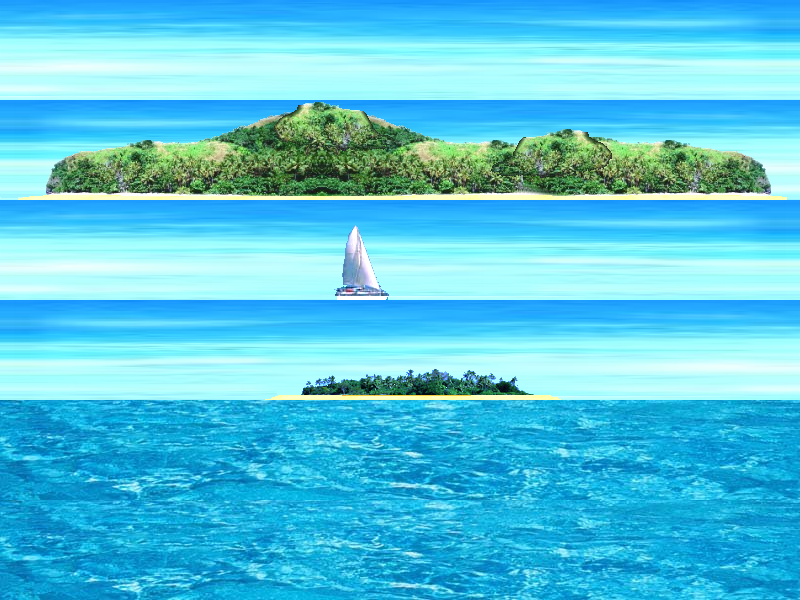
Seasick?
Ok scrolling stars and text gets a bit boring. Do you get seasick? Check out this rolling ocean. Use the mouse or arrow keys to turn and speed up or slow down. It kinda gives the impression of being on a rolling ocean swell. The ocean.bmp has four strips for the horizon which I blit into the top of the picture depending on what the heading is. Then I blit four copies of the sea section. I roll these up and down using a sine curve and I also roll them forward to create more movement. The further away section rolls least and they double up their movement the nearer the bottom of the screen they are.Its just like having multiple backgrounds in the sprite engine. There is lots of time to draw sprites on top of this moving background. Doing so creates a pretty cool game environment.
Copy this bmp to your own PC
 nomainwin
 timervalue=42
 true=1
 false=0
 heading=0
 turn=0
 speed=0
 midx=400
 midy=300
 posx=40
 posy=40

 ' now open our window as a full screen popup window and set its event labels

 WindowWidth = 800
 WindowHeight = 600
 UpperLeftX = (DisplayWidth-WindowWidth)/2
 UpperLeftY = (DisplayHeight-WindowHeight)/2
 graphicbox #1.g, 0,0,800,600
 open "Ocean" for window_popup as #1
 print #1, "trapclose [quit]"
 print #1.g, "when mouseMove [movemouse]"


 ' open the dll file used for TransparentBlt

 open "msimg32.dll" for dll as #m

 ' set up our bitmaps, open device contexts and store our bitmaps in them
 print #1.g, "down ; fill black"
 print #1.g, "getbmp bmp 0 0 800 600"
 loadbmp "ocean","ocean.bmp"

 ' bDC is our screen buffer, (DC handle to the graphicsbox)

 bDC=GetDC(hwnd(#1.g))

 ' mDC is a copy of the screen in memory (double buffer)

 mDC=CreateCompatibleDC(bDC)
 hBitmap=hbmp("bmp")
 oldBmp=SelectObject(mDC,hBitmap)


 ' gDC is a copy of the screen in memory to store reusable graphics in
 ' our graphics pallete if you like.

 gDC=CreateCompatibleDC(bDC)

 ' we copy the screen but fill it with graphics of our choice
 ' and low and behold this amorphous data object assumes the
 ' size of the bmp we select into it

 hBitmap=hbmp("ocean")
 oldBmp=SelectObject(gDC,hBitmap)

 ' start the game timer

 timer timervalue , [drawloop]
 wait

 ' the main drawing loop

 [drawloop]

 ' read keyboard and mouse events

 scan

 ' flip the mDC to the bDC so that it is visible and stable for as long as possible

 call StretchBlt,bDC,0,0,800,600,mDC,0,0,800,600

 ' now start to redraw everything to mDC from gDC


 ' draw the horizon
 heading=heading+turn
 if heading<0 then heading=heading+3200
 if heading>3199 then heading=heading-3200
 horizonX=heading-(int(heading/800))*800
 horizonY=int(heading/800)*100
 horizonZ=horizonY+100
 if horizonZ=400 then horizonZ=0
 call StretchBlt,mDC,0,0,800-horizonX,200,gDC,horizonX,horizonY,800-horizonX,100
 call StretchBlt,mDC,800-horizonX,0,horizonX,200,gDC,0,horizonZ,horizonX,100


 ' draw the sea

 wave1=int(sin(roll/57.29577951)*(40-speed))
 wave2=int(wave1/2)
 wave3=int(wave1/4)
 wave4=int(wave1/8)
 roll=roll+8+speed
 if roll>=360 then roll=0


 sea1=sea1-(speed/2)
 sea2=sea2-(speed/4)
 sea3=sea3-(speed/8)
 sea4=sea4-(speed/16)
 if sea1<400 then sea1=500
 if sea2<400 then sea2=500
 if sea3<400 then sea3=500
 if sea4<400 then sea4=500

 turn4=turn4+(turn/2)
 turn3=turn3+(turn/4)
 turn2=turn2+(turn/8)
 turn1=turn1+(turn/16)
 if turn4<0 then turn4=turn4+800
 if turn4>799 then turn4=turn4-800
 if turn3<0 then turn3=turn3+800
 if turn3>799 then turn3=turn3-800
 if turn2<0 then turn2=turn2+800
 if turn2>799 then turn2=turn2-800
 if turn1<0 then turn1=turn1+800
 if turn1>799 then turn1=turn1-800


 call StretchBlt,mDC,0,200,800-int(turn4),100,gDC,int(turn4),int(sea4),800-int(turn4),100
 call StretchBlt,mDC,800-int(turn4),200,int(turn4),100,gDC,0,int(sea4),int(turn4),100
 call StretchBlt,mDC,0,280+wave3,800-int(turn3),120,gDC,int(turn3),int(sea3),800-int(turn3),100
 call StretchBlt,mDC,800-int(turn3),280+wave3,int(turn3),120,gDC,0,int(sea3),int(turn3),100
 call StretchBlt,mDC,0,380+wave2,800-int(turn2),150,gDC,int(turn2),int(sea2),800-int(turn2),100
 call StretchBlt,mDC,800-int(turn2),380+wave2,int(turn2),150,gDC,0,int(sea2),int(turn2),100
 call StretchBlt,mDC,0,480+wave1,800-int(turn1),150,gDC,int(turn1),int(sea1),800-int(turn1),100
 call StretchBlt,mDC,800-int(turn1),480+wave1,int(turn1),150,gDC,0,int(sea1),int(turn1),100


 ' read the keyboard

 'escape/quit
 CallDLL #user32, "GetAsyncKeyState",_VK_ESCAPE AS long,k1 AS long
 CallDLL #user32, "GetAsyncKeyState",81 AS long,k2 AS long
 ' I used _VK_Q in above line but LB did not recognise it so used actual code 81
 if k1<0 or k2<0 then [quit]

 'left
 CallDLL #user32, "GetAsyncKeyState",_VK_LEFT AS long,k1 AS long
 CallDLL #user32, "GetAsyncKeyState",_VK_4 AS long,k2 AS long
 if k1<0 or k2<0 then [left]

 'right
 CallDLL #user32, "GetAsyncKeyState",_VK_RIGHT AS long,k1 AS long
 CallDLL #user32, "GetAsyncKeyState",_VK_6 AS long,k2 AS long
 if k1<0 or k2<0 then [right]

 'up
 CallDLL #user32, "GetAsyncKeyState",_VK_UP AS long,k1 AS long
 CallDLL #user32, "GetAsyncKeyState",_VK_8 AS long,k2 AS long
 if k1<0 or k2<0 then [accelerate]

 'down
 CallDLL #user32, "GetAsyncKeyState",_VK_DOWN AS long,k1 AS long
 CallDLL #user32, "GetAsyncKeyState",_VK_2 AS long,k2 AS long
 if k1<0 or k2<0 then [brake]


 wait


 [movemouse]
 if MouseX<oldx then [left]
 if MouseX>oldx then [right]
 if MouseY<oldy then [accelerate]
 if MouseY>oldy then [brake]
 wait

 [left]
 select case turn
 case -4
 turn=-8
 case -2
 turn=-4
 case -1
 turn=-2
 case 0
 turn=-1
 case 1
 turn=0
 case 2
 turn=1
 case 4
 turn=2
 case 8
 turn=4
 end select
 oldx=MouseX
 wait

 [right]
 select case turn
 case -8
 turn=-4
 case -4
 turn=-2
 case -2
 turn=-1
 case -1
 turn=0
 case 0
 turn=1
 case 1
 turn=2
 case 2
 turn=4
 case 4
 turn=8
 end select
 oldx=MouseX
 wait

 [accelerate]
 speed=min(32,speed+1)
 oldy=MouseY
 wait

 [brake]
 speed=max(1,speed-1)
 oldy=MouseY
 wait


 [quit]
 unloadbmp "ocean"
 unloadbmp "bmp"
 call ReleaseDC hwnd(#1), bDC
 call DeleteDC mDC
 call DeleteDC gDC
 close #1
 close #m

 end


 '=============================Window and DC functions=================================
 Function GetDC(hWnd)
 CallDLL #user32, "GetDC",_
 hWnd As uLong,_ 'window or control handle
 GetDC As uLong 'returns device context
 End Function

 Sub ReleaseDC hWnd, hDC
 CallDLL#user32,"ReleaseDC",_
 hWnd As uLong,_ 'window or control handle
 hDC As uLong,_ 'handle of DC to delete
 result As Long
 End Sub

 Function CreateCompatibleDC(hDC)
 CallDLL #gdi32,"CreateCompatibleDC",_
 hDC As uLong,_ 'window DC
 CreateCompatibleDC As uLong 'memory DC
 End Function

 Sub DeleteDC hDC
 CallDLL #gdi32, "DeleteDC",_
 hDC As uLong,_ 'memory DC to delete
 r As Boolean
 End Sub

 Sub StretchBlt hDCdest,x,y,w,h,hDCsrc,x2,y2,w2,h2
 CallDLL #gdi32, "SetStretchBltMode",_
 hDCdest As uLong,_ 'device context
 _COLORONCOLOR As Long,_ 'color reduction mode
 RESULT As Long
 CallDLL #gdi32, "StretchBlt",_
 hDCdest As uLong,_ 'destination
 x As Long,_ 'destination x pos
 y As Long,_ 'destination y pos
 w As Long,_ 'destination width desired
 h As Long,_ 'destination height desired
 hDCsrc As uLong,_ 'source
 x2 As Long,_ 'x location to start from source
 y2 As Long,_ 'y location to start from source
 w2 As Long,_ 'width desired from source
 h2 As Long,_ 'height desired from source
 _SRCCOPY As Ulong,_ 'dwRasterOperation
 RESULT As Boolean
 End Sub


 Sub TransparentBlt hDCdest,x,y,w,h,hDCsrc,x2,y2,w2,h2,crTransparent
 calldll #m, "TransparentBlt",_
 hDCdest As uLong,_ 'destination
 x As Long,_ 'destination x pos
 y As Long,_ 'destination y pos
 w As Long,_ 'destination width desired
 h As Long,_ 'destination height desired
 hDCsrc As uLong,_ 'source
 x2 As Long,_ 'x location to start from source
 y2 As Long,_ 'y location to start from source
 w2 As Long,_ 'width desired from source
 h2 As Long,_ 'height desired from source
 crTransparent as ulong,_ 'color to make transparent
 result as boolean
 end sub


 Function SelectObject(hDC,hObject)
 CallDLL #gdi32,"SelectObject",_
 hDC As uLong,_ 'memory device context
 hObject As uLong,_ 'handle of object
 SelectObject As uLong 'returns previously selected object
 End Function
Where Now?
Well where do you go from here, Blitting is fun, it's fast and it can cope with full screen graphics. If you want to explore further goto to Alyce's Restaurant and check out whats there. Get the Companion, it covers all of this stuff. Check out my site, wiki et al. The most complex blitting game I have coded is SpaceRace. Here I use blitting to mirror corridor graphics and expand them on screen to give the illusion of 3D movement. It's in the archive or on my site.Actually the only barrier is your imagination.
Happy coding
rodbird@hotmail.com
 ' this is the function to blit transparently, it won't take negative numbers to mirror
 ' the image but aside from the color value on the end it is exactly the same as StretchBlt
 ' and will also stretch graphics.

 Sub TransparentBlt hDCdest,x,y,w,h,hDCsrc,x2,y2,w2,h2,crTransparent
 calldll #m, "TransparentBlt",_
 hDCdest As uLong,_ 'destination
 x As Long,_ 'destination x pos
 y As Long,_ 'destination y pos
 w As Long,_ 'destination width desired
 h As Long,_ 'destination height desired
 hDCsrc As uLong,_ 'source
 x2 As Long,_ 'x location to start from source
 y2 As Long,_ 'y location to start from source
 w2 As Long,_ 'width desired from source
 h2 As Long,_ 'height desired from source
 crTransparent as ulong,_ 'color to make transparent 0=Black
 result as boolean
 end sub
RETURN to the SUBMIT ARTICLE Page