 RodBird
Feb 27, 2011
RodBird
Feb 27, 2011
Getting to grips with Segments
Rod BirdTable of Contents
Intro
Graphic segments perplex quite a few folks. I hope to clarify their use and help you choose the most appropriate strategy for managing segments within your project.You need to manage segments as they consume memory. There are two kinds of segments, flushed segments and the current segment. Even if you don’t use the flush command to create
The main purpose of a flushed segment is to preserve the drawn graphics so that they may be redrawn if the program window is minimized or covered. If graphics have not been flushed
For the more adventurous, segments also allow multiple graphic scenes to be flicked on and off
The help file is very clearly worded, once you have read this document please review the commands I list below, you may be better able to appreciate what is being said.
The drawing history past and present
Liberty drawing commands do more than paint pixels on the screen, the drawing commands you issue are recorded in memory. The commands are recorded sequentially and grouped together in segments. You form a segment by issuing a #1.gb "flush" command.You need to be aware that this recording is always on. From the moment the program starts and immediately after a flush command, a new current segment is in play.
Flushed segments are the past, only they will be restored if the screen is minimized or covered by another window. The current segment is the present, current segment drawing will be lost unless flushed into the past or preserved in another way.
Naming and numbering
Segments are identified by an ever increasing number. An initial current segment is established as soon as the program starts and is numbered 1, the next established 2 and so on. Even if we delete segments the next current segment will be numbered one higher than the last.Liberty BASIC allows us to establish the number of the current segment and store that in an appropriate program variable by issuing a #1.gb "segment variablename" command. Even more conveniently it allows us to store the number directly to a system variable with a #1.gb "flush segmentname" command. segmentname adopts the number of the segment and can be used to name the segment when you later redraw or delete it.
A couple of things catch folk out in naming and numbering. First is that flush both saves the segment and establishes a new segment. If you obtain the current segment number before you flush, then you will have the number of the soon to be flushed segment. If you obtain it after the flush, you have actually obtained the number of the new current segment. Simply deduct one in that situation if you actually wanted the number of the last flushed segment.
Second thing is that the segmentname system variable is out of scope to the program. It can be used as a literal name in #1.gb "redraw segmentname" and #1.gb "delsegment segmentname" commands but you cannot use it as a program variable. If you establish a program variable of the same name it is an entirely different variable.
Managing segments
Segments can be deleted with #1.gb "delsegment";n or #1.gb "delsegment segmentname", redrawn individually with #1.gb "redraw";n or #1.gb "redraw segmentname" or all undeleted segments redrawn with the command,#1.gb "redraw".Redraw will paint the named segment to the front of the screen, this changes the Z order of the drawing on screen. redraw will restore the Z order and paint undeleted segments in their original Z order.
You can erase all segments by issuing a #1.gb "cls" command. This deletes all flushed segments, the current segment and wipes the screen. You can clear the current segment by issuing a #1.gb "discard" command.
Decouple the screen
Only the redraw and cls command have any impact on what you see on the screen, other commands act only on the segments held in memory. Delsegment will have no impact on the screen, discard will have no impact on the screen but the segment targeted will be deleted. Decouple the screen and the drawing history in your mind.Start with a clean sheet
When you start, start with a clean sheet, discard what is in your current segment. Think what you have flushed already . You might use cls if you wanted to start completely fresh.
 Memory use is zero and there are no forgotten drawing commands.
 'good practice to start with a clean sheet
#1.gb "cls"
'or
#1.gb "discard"
Static graphics
If you are painting graphics that will not be changed, perhaps a company logo then simply draw and flush once.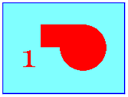 Memory use is managed to one segment.
 'this is the static graphic example
nomainwin
WindowWidth = 600
WindowHeight = 400
UpperLeftX = (DisplayWidth-WindowWidth)/2
UpperLeftY = (DisplayHeight-WindowHeight)/2
graphicbox #1.gb, 50,25,500,300
open "Static Graphic Example" for window_nf as #1
#1 "trapclose [quit]"
'put the pen down and set the font
'note cls has no impact on these settings
#1.gb "down ; font comic_sans 48"
'good practice to start with a clean sheet
#1.gb "cls"
'draw my static graphics
#1.gb "fill cyan ; backcolor red ; color red"
#1.gb "place 100 50 ; boxfilled 300 150"
#1.gb "place 300 150 ; circlefilled 100"
#1.gb "backcolor cyan ; color red"
#1.gb "place 50 100 ;\1"
'now flush the graphics once and once only
#1.gb "flush"
wait
'click on the title bar of the windows and
'slide the window off screen and back,
'the graphics are retained. Rem out the
'flush command and try again.
[quit]
close #1
end
Refreshed graphics
If you are painting fresh graphics, that completely replace the previous graphics, then you must delsegment the previous segment prior to drawing and flushing the next. That way there is only ever one segment in memory.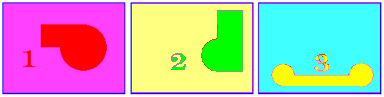 Memory use is managed to one segment.
 'this is the refreshed graphic example, only one segment
'is ever retained in memory.
nomainwin
WindowWidth = 600
WindowHeight = 400
UpperLeftX = (DisplayWidth-WindowWidth)/2
UpperLeftY = (DisplayHeight-WindowHeight)/2
button #1.b, "Draw Graphic", [nextdrawing], UL, 250, 340
textbox #1.tb 350, 340, 100, 25
graphicbox #1.gb, 50,25,500,300
open "Refreshed Graphic Example" for window_nf as #1
#1 "trapclose [quit]"
'put the pen down and set the font
'note cls has no impact on these settings
#1.gb "down ; font comic_sans 48"
'good practice to start with a clean sheet
#1.gb "cls"
drawing=1
wait
[nextdrawing]
'first delete the last segment, it does not matter that
'first time round this loop there isn't a segment to delete
'Liberty will ignore the command
#1.gb "delsegment seg"
'now paint over the last graphics on screen
if drawing=1 then 'draw graphics 1
#1.gb "fill pink ; backcolor red ; color red"
#1.gb "place 100 50 ; boxfilled 300 150"
#1.gb "place 300 150 ; circlefilled 100"
#1.gb "backcolor pink"
#1.gb "place 50 100 ;\1"
end if
if drawing=2 then 'draw graphics 2
#1.gb "fill yellow ; backcolor green ; color green"
#1.gb "place 300 50 ; boxfilled 400 200"
#1.gb "place 300 200 ; circlefilled 100"
#1.gb "backcolor yellow"
#1.gb "place 250 50 ;\2"
end if
if drawing=3 then 'draw graphics 3
#1.gb "fill cyan ; backcolor yellow ; color yellow"
#1.gb "place 100 200 ; boxfilled 350 250"
#1.gb "place 100 200 ; circlefilled 50"
#1.gb "place 350 200 ; circlefilled 50"
#1.gb "backcolor cyan ; color yellow"
#1.gb "place 200 170 ;\3"
end if
drawing=drawing+1
if drawing=4 then drawing=1
'now flush the graphics and store the segment
'number in the variable seg
#1.gb "flush seg"
'The seg variable is catching the segment id and will
'increase everytime through the loop
'print the segment id number for info
'note the name variable "seg" is for internal use.
'to obtain and use the segment number in a variable
'of your own, use segment variablename
'this will provide the current segment number,
'deduct one to get the true number of the last
'flushed segment.
#1.gb "segment currentsegmentnumber"
lastflushed=currentsegmentnumber-1
#1.tb "Seg ID:";lastflushed
wait
[quit]
close #1
end
Animated graphics
If you are painting animated graphics by overdrawing and redrawing repetitively you must manage memory and repetitively discard the current segment. The screen will behave as you expect but unless you discard the current segment memory use will build. The graphics will not be preserved if the window is covered or minimized, the repetitively drawing will restore the animation quickly so it does not matter.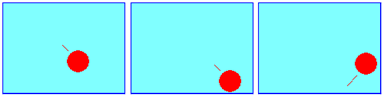 Memory use is minimal.
 nomainwin
WindowWidth = 600
WindowHeight = 400
UpperLeftX = (DisplayWidth-WindowWidth)/2
UpperLeftY = (DisplayHeight-WindowHeight)/2
graphicbox #1.gb, 50,25,500,300
open "Animated Graphic Example" for window_nf as #1
#1 "trapclose [quit]"
#1.gb "down"
x=100
y=100
dx=10
dy=10
timer 17, [draw]
wait
[draw]
'discard the current drawing history
#1.gb "discard"
'overdraw, move and draw the ball
oldx=x
oldy=y
x=x+dx
y=y+dy
if x>475 then x=475 : dx=dx*-.9
if x<25 then x=25 : dx=dx*-.9
if y>275 then y= 275 : dy=dy*-.9
if y<25 then y=25 : dy=dy*-.9
#1.gb "backcolor buttonface ; color buttonface"
#1.gb "place ";oldx;" ";oldy
#1.gb "circlefilled 25"
#1.gb "backcolor red ; color red"
#1.gb "place ";x;" ";y
#1.gb "circlefilled 25"
wait
[quit]
timer 0
close #1
end
Background and foreground graphics
If you are going to have a mostly static background and some constantly changing foreground graphics, say sliders or dials then draw the background, flush that as the first segment. You will retain that segment. Now draw and flush the foreground segment. Next time through delsegment the foreground segment redraw the background and then draw and flush the new foreground.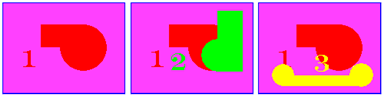 Memory use will not exceed two segments.
 'this is the background graphic example, only two segments
'are ever retained in memory.
nomainwin
WindowWidth = 600
WindowHeight = 400
UpperLeftX = (DisplayWidth-WindowWidth)/2
UpperLeftY = (DisplayHeight-WindowHeight)/2
button #1.b, "Draw Graphic", [nextdrawing], UL, 250, 340
graphicbox #1.gb, 50,25,500,300
open "Refreshed Graphic Example" for window_nf as #1
#1 "trapclose [quit]"
'put the pen down and set the font
'note cls has no impact on these settings
#1.gb "down ; font comic_sans 48"
'good practice to start with a clean sheet
#1.gb "cls"
'draw the background
#1.gb "fill pink ; backcolor red ; color red"
#1.gb "place 100 50 ; boxfilled 300 150"
#1.gb "place 300 150 ; circlefilled 100"
#1.gb "backcolor pink"
#1.gb "place 50 100 ;\1"
'now flush as the named segment "backgroundimage"
#1.gb "flush backgroundimage"
drawing=2
wait
[nextdrawing]
'first delete the last foreground segment, it does not matter that
'first time round this loop it isn't defined
'Liberty will ignore the command
#1.gb "delsegment foregroundimage"
'redraw the background using its segment name
#1.gb "redraw backgroundimage"
'now paint the new foreground image
'notice that the foreground images do not use
'full screen fills.
if drawing=2 then 'draw graphics 2
#1.gb "backcolor green ; color green"
#1.gb "place 300 50 ; boxfilled 400 200"
#1.gb "place 300 200 ; circlefilled 100"
#1.gb "backcolor red"
#1.gb "place 180 120 ;\2"
end if
if drawing=3 then 'draw graphics 3
#1.gb "backcolor yellow ; color yellow"
#1.gb "place 100 200 ; boxfilled 350 250"
#1.gb "place 100 200 ; circlefilled 50"
#1.gb "place 350 200 ; circlefilled 50"
#1.gb "backcolor red ; color yellow"
#1.gb "place 230 170 ;\3"
end if
drawing=drawing+1
if drawing=4 then drawing=2
'now flush the current history as the new foreground segment
'using the foregroundimage name
#1.gb "flush foregroundimage"
wait
[quit]
close #1
end
Multiple segment graphics
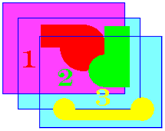
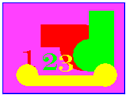
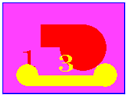
If you wantMost often you will use partial or transparent graphics. By that I mean they will fill only parts of the screen. If you use fills they will cover graphics behind. The segments are maintained in memory in the Z order they were created. They can be pulled to the front of the screen with
 Memory use builds depending on segments used.
 'this is the multiple segment graphic example,
'this example stores four segments
nomainwin
WindowWidth = 600
WindowHeight = 400
UpperLeftX = (DisplayWidth-WindowWidth)/2
UpperLeftY = (DisplayHeight-WindowHeight)/2
button #1.b, "Wipe", [wipe], UL, 100, 340
button #1.b, "Red", [red], UL, 150, 340
button #1.b, "Green", [green], UL, 200, 340
button #1.b, "Yellow", [yellow], UL, 250, 340
graphicbox #1.gb, 50,25,500,300
open "Multiple Segment Example" for window_nf as #1
#1 "trapclose [quit]"
'good practice to start with a clean sheet
#1.gb "cls ; down"
'create a segment that appears to clear the screen
#1.gb "fill buttonface"
#1.gb "flush wipescreensegment"
'create a second segment
#1.gb "backcolor red ; color red"
#1.gb "place 100 50 ; boxfilled 300 150"
#1.gb "place 300 150 ; circlefilled 100"
#1.gb "flush redsegment"
'create a third segment
#1.gb "backcolor green ; color green"
#1.gb "place 300 50 ; boxfilled 400 200"
#1.gb "place 300 200 ; circlefilled 100"
#1.gb "flush greensegment"
'create a fourth segment
#1.gb "backcolor yellow ; color yellow"
#1.gb "place 100 200 ; boxfilled 350 250"
#1.gb "place 100 200 ; circlefilled 50"
#1.gb "place 350 200 ; circlefilled 50"
#1.gb "flush yellowsegment"
'pretend to clear the screen
#1.gb "redraw wipescreensegment"
'now wait for user input
'any of the four segments can be redrawn
'instantly click the buttons in various
'orders to see the impact
wait
[wipe]
#1.gb "redraw wipescreensegment"
wait
[red]
#1.gb "redraw redsegment"
wait
[green]
#1.gb "redraw greensegment"
wait
[yellow]
#1.gb "redraw yellowsegment"
wait
[quit]
close #1
end