Older Version
Newer Version
 JanetTerra
Jul 1, 2007
JanetTerra
Jul 1, 2007
Sprite Boundary Detection Tip
Author: Ben Jimenez
Boundary Detection
The tip in this article will help any beginning game programmer to easily design
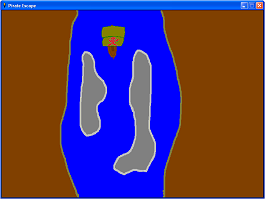 | ... | 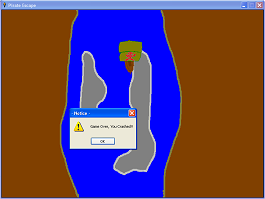 |
| Island boundaries defined as collision sites | ... | Collision detected against background image |
Many games have background boundaries of increasing complexities as the levels increase. This tip benefits this type of game
The steps are broken down Detection Program
First, copy and paste the program below into your Liberty/Just BASIC code editor window.
Dim X(5000) 'this can be adjusted to fit your boundary needs
Dim Y(5000)
sz=5 'used to determine the cushion for detecting collisions
nomainwin
WindowWidth=800 'these can be changed to match your background image size
WindowHeight=600
UpperLeftX=int((DisplayWidth-WindowWidth)/2)
UpperLeftY=int((DisplayHeight-WindowHeight)/2)
menu #main,"File","New",[new],"Open",[open],"Save",[save],|,"Test",[test],|,"Exit",[exit]
open "Boundary Designer" for graphics_nsb asfollows:1)#main
print #main,"Down;size ";sz;";color red";
print #main,"trapclose [exit]"
[main.loop]
wait
[new]
filedialog "Open BMP Background","*.bmp",bitmapName$
if bitmapName$<>"" then
loadbmp "bg",bitmapName$
end if
#main,"drawbmp bg 0 0;flush"
cnt=1
redim X(5000)
redim Y(5000)
print #main,"color red"
print #main,"when mouseMove";
print #main,"when rightButtonUp";
print #main,"when leftButtonMove [check]";
print #main,"setfocus"
goto [main.loop]
[check]
print #main,"set ";MouseX;" ";MouseY
if MouseX<>X(cnt-1) or MouseY<>Y(cnt-1) then
X(cnt)=MouseX
Y(cnt)=MouseY
cnt=cnt+1
end if
goto [main.loop]
[save]
filedialog "Save level file", "*.lvl", fileName$
open fileName$ for output as #1
for x=1 to cnt-1
tX=X(x)
tY=Y(x)
print #1,tX
print #1,tY
next x
close #1
notice "File saved."
goto [main.loop]
[exit]
close #main
end
[open]
print #main,"when mouseMove ";
print #main,"when leftButtonMove";
filedialog "Select file","*.lvl",fileName$
if fileName$="" then [main.loop]
cnt=1
open fileName$ for input as #2
while eof(#2)<>-1
line input #2,tX
line input #2,tY
X(cnt)=tX
Y(cnt)=tY
cnt=cnt+1
wend
close #2
print #main,"cls;color red"
for d=1 to cnt-1
print #main,"set ";X(d);" ";Y(d)
next d
print #main,"flush"
goto [main.loop]
[test]
notice "Right click to stop testing"
print #main,"when leftButtonMove";
print #main,"when mouseMove [test.hit]";
print #main,"when rightButtonUp [end.test]";
goto [main.loop]
[test.hit]
for t=1 to cnt-1
'I've made the dots bigger by adding and subracting sz value from each point.
'This makes it easier to hit the line
if MouseX >=X(t)-sz and MouseX <=X(t)+sz and MouseY >=Y(t)-sz and MouseY<=Y(t)+sz then
print #main,"color blue;set ";MouseX;" ";MouseY
t=cnt-1
end if
next t
goto [main.loop]
[end.test]
print #main,"when mouseMove";
print #main,"when rightButtonUp";
print #main,"when leftButtonMove [check]";
print #main,"color red";
notice "Testing complete"
goto [main.loop]
Running the Program
Then, follow these simple steps:
#1 Load a background BMP into the program.
#2 Use your mouse to draw out the boundaries for the level.
#3 Save the level as an .lvl file (basic text file) to be used in your Game.
#4 Use a small programming routine in your game to check for collisions.
Loading the Background BMP Image
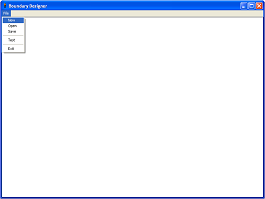 | ... | 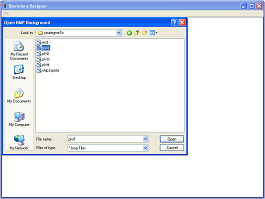 | ... | 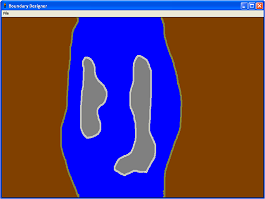 |
| Choose New from menu, | ... | Load the bitmap and the program | ... | will Display that background image |
Drawing the Boundaries
Press and hold the left mouse button to draw on your background. Release the button to stop drawing. You can begin drawing again anywhere on your picture. You will want to draw slowly so the program can capture your mouse locations.
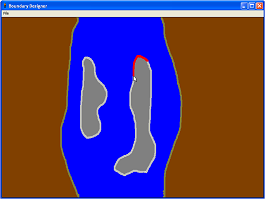 | ... | 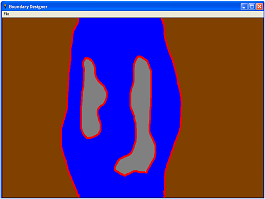 |
| Defining the collision boundary | ... | Red areas depict collision boundaries |
Testing the Boundaries
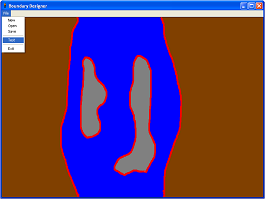 | ... | 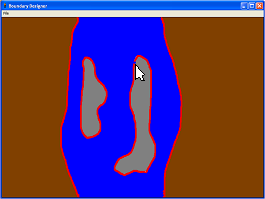 |
| Choose Test from menu, | ... | Move your mouse to test boundaries |
This will switch to test mode and you will no longer be able to draw.
Saving the Boundaries
When you have completed drawing your boundary you can save it as a .lvl file. The .lvl file is just a text file with the extension of
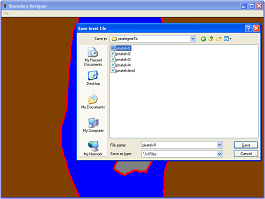 | ... | 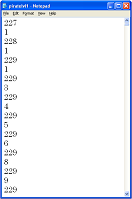 |
| From the menu, Save the boundaries | ... | The saved .lvl file |
Once you have saved the file, you can use the file in your game with just a small amount of code.
Using the .lvl Information in Your Code
Reading the .lvl File
Using the boundary file in your game is really simple to do. First you must open and load the file into an array. You can add this code to your game level load routine.
 Dim X(5000) ‘5000 can be changed if you need less or more
 Dim Y(5000)
 cnt=1 ‘setup up loop counter
 cush=5
 Open “level.lvl” for input as #lvl

 While eof(#lvl)=0
 line input #lvl,tX
 line input #lvl,tY
 X(cnt)=tX
 Y(cnt)=tY
 cnt=cnt+1
 wend

 close #lvl ‘close file
Checking for Collision With Each Sprite Movement
Once the .lvl file is loaded into the array you can check for collisions by adding the following code to your main loop. I will use an example of a routine I have used in my game. The code was designed to be used with one sprite on the game screen. The routine would have to be changed in order to check more then one sprite. You may only want to check for the player's sprite if the other sprites have a pre determined path.
 [mainloop] 'check for crash
 print #main ,"spritexy? ship1 sx sy"

 ‘ This loop will quickly check if my boundary position is inside the position of a sprite.
 ‘You can switch this, if you rather reverse the check.
 ‘You can also remove the "cush" from the if then line if you wish.

 for t=0 to cnt-1
 if X(t)-cush>= (sx+20) and X(t)+cush<= (sx+45) and Y(t)-cush>=(sy+20) and Y(t)+cush<=(sy+70) then
 print #main,"spritemovexy ship1 0 0";
 t=cnt-1
 hit=1
 EXIT FOR
 end if
 next t

 if hit=1 then
 notice “You’ve hit something!”
 end if
Author Information and Demo Program
This is basically all there is to creating simple boundaries for your sprites. This is a simple technique that can be used in your games until you become more experienced with Liberty/Just BASIC and find more sophisticated methods of collision detection for boundaries.
You can find a game I created named Pirate Escape that uses this method on the LB Downloads file depot under Games. The illustrations in this article are screenshots taken from the creation of that game. You can contact me at ben_jimenez@yahoo.com with any questions or comments.