 Alyce
Feb 6, 2009
Alyce
Feb 6, 2009
Sprite Byte Tutorials Lesson Six: User-Controlled Sprite and Computer-Controlled Sprite
by Alyce Watson http://alycesrestaurant.com/-
 Alyce
Alyce Table of Contents
Sprites Controlled by User and Computer
In Lesson Four we leaned how to move a sprite with code routines, and in Lesson Five we learned how to move a sprite according to user input. If we put those two methods together, we've got the basis for an arcade game.Sprite Location Stored in a Variable
In Lesson Five we stored the location of the user-controlled sprite in variables called SpriteX and SpriteY so that we could change those values easily. We updated the location of the sprite whenever the user pressed one of the arrow keys. It looked like this:'right arrow = X gets bigger:You can review the methods here:
if asc(right$(Inkey$,1))=39 then spriteX = spriteX + 3
'left arrow = X gets smaller:
if asc(right$(Inkey$,1))=37 then spriteX = spriteX - 3
'up arrow = Y gets smaller:
if asc(right$(Inkey$,1))=38 then spriteY = spriteY - 3
'down arrow = Y gets bigger:
if asc(right$(Inkey$,1))=40 then spriteY = spriteY + 3
'locate sprite at new position and update display
#w.g "spritexy guy ";spriteX;" ";spriteY
#w.g "drawsprites"
Sprite Byte Tutorials Lesson Five: User-Controlled Sprite
Computer-Controlled Sprite Location Stored in a Variable
We'll add a user-controlled sprite just as we did in Lesson Five . We'll also add a computer-controlled sprite. We must first load a bitmap for the sprite image. The crab bitmap is located in the Sprites folder in the Liberty BASIC root directory.
loadbmp "crab", "sprites\crab1.bmp"We add the sprite with the ADDSPRITE
#w.g "addsprite enemy crab"We'll call the variables for the location of the crab sprite crabX and crabY . We issue the spritexy command, to locate the crab sprite, then we issue the drawsprites command to update the display.
Did you notice how we named the variables to reflect their usage? This is an easy way of documenting our code so that it is easy to understand.
 'variable for location of computer sprite
 crabX = 360 : crabY = 100
 #w.g "spritexy enemy ";crabX;" ";crabY
 #w.g "drawsprites" 'update screen
 loadbmp "crab", "sprites\crab1.bmp"
Moving Independently
The crab sprite will move at regular intervals because we use a timer to update the crab's location as we did in Lesson Four . The timer command looks like this:'set up a timer to move crab spriteThe crab and the smiley move independently of one another. The routine triggered by the timer moves the crab sprite:
timer 300, [updateDisplay]
[updateDisplay]The routine triggered by the user's keyboard presses moves the smiley sprite:
'move computer-controlled sprite at timer intervals
crabX = crabX - 5 : crabY = crabY + 2
'locate sprites at new positions and update display
#w.g "spritexy enemy ";crabX;" ";crabY
#w.g "drawsprites"
wait
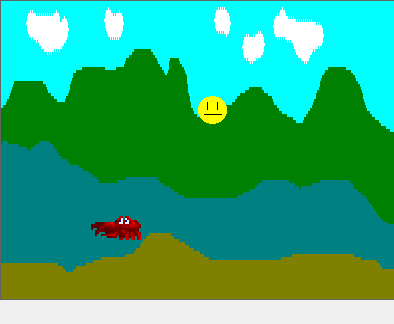
[updatePosition]There are two demonstration programs at the end of this lesson. The first one is a very simple program that shows a user-controlled smiley sprite and a computer-controlled crab sprite.
'move user-controlled sprite when arrows are pressed
'37 = left arrow
'38 = up arrow
'39 = right arrow
'40 = down arrow
'Arrow keys make Inkey$ two characters long,
'so we check the rightmost character with
'the right$() function.
'right arrow = X gets bigger:
if asc(right$(Inkey$,1))=39 then spriteX = spriteX + 3
'left arrow = X gets smaller:
if asc(right$(Inkey$,1))=37 then spriteX = spriteX - 3
'up arrow = Y gets smaller:
if asc(right$(Inkey$,1))=38 then spriteY = spriteY - 3
'down arrow = Y gets bigger:
if asc(right$(Inkey$,1))=40 then spriteY = spriteY + 3
#w.g "spritexy guy ";spriteX;" ";spriteY
#w.g "drawsprites"
wait
Boundary Detection
The methods discussed above work well, but if the program runs for a bit, the crab moves off the screen, never to be seen again! We can stop the crab easily by checking its location each time we move it. If it is close to one of the edges, we will change its direction.Variables for Amount of Movement
We accomplish boundary detection most easily if we store the amount of X and Y movement in variables, just as we stored the X and Y locations in variables.'add variable for increment to move crab each time
moveCrabX = -5 : moveCrabY = 2
Stopping at the Edge
Each time we update the location of the crab sprite, we'll test the current location with a series of if/then statements. If the crab's X location variable is near the left side, we'll change the incremental X variable to be 5 so that it begins to travel toward the right. If the crab's X location is near the right side, we'll change the incremental X variable to be -5 so that it begins to travel toward the left. If the crab's Y location is near the top, we'll change the incremental Y variable to be 2 so that it begins to travel downward. If the crab's Y location is near the bottom, we'll change the incremental Y variable to be -2 so that it begins to travel upward.'add boundary detection and reverse direction at edges
if (crabX > 370) then moveCrabX = -5
if (crabX < 10) then moveCrabX = 5
if (crabY > 270) then moveCrabY = -2
if (crabY < 10) then moveCrabY = 2
Changing Direction
We've checked to see if the crab is at the edge of the display and we've modified the movement variables if needed. Here's how we use those variables. We add the incremental variables to the location variables then issue a spritexy command to update the crab's location on the screen, like this:crabX = crabX + moveCrabX : crabY = crabY + moveCrabY
#w.g "spritexy enemy ";crabX;" ";crabY
Review
In Lesson Six, we've used a computer-controlled sprite that moves when a timer event is triggered. We've also used a user-controlled sprite that moves when a user keyboard event is triggered. These actions happen independently of one another. The first demonstration program below includes the complete code.We've also added boundary detection for the computer-controlled sprite. We've stored the amount of movement in the X and Y directions in special variables that we use to incremement the sprite's location each time it moves. This is demonstrated in the second program listed below.
Demonstration Programs
 |
| Demonstration Program |
The following demonstration programs require bitmaps in your Liberty BASIC sprites folder and they must be run from the Liberty BASIC root directory.
Demo of Computer-Controlled Sprite and User-Controlled Sprite
'Add a sprite and locate it at x=10, y=30.Boundary Detection Added
'Allow user to press arrow buttons to move sprite.
'Add a computer-controlled sprite.
nomainwin
loadbmp "smiley", "sprites\smiley.bmp"
loadbmp "crab", "sprites\crab1.bmp"
loadbmp "landscape", "sprites\bg1.bmp"
WindowHeight = 350 : WindowWidth = 400
graphicbox #w.g, 0, 0, 400, 300
statictext #w.s, "",40,300,100,40
open "User Sprite + Computer Sprite" for window_nf as #w
#w "trapclose [quit]"
#w.g "down"
#w.g "background landscape"
#w.g "addsprite guy smiley"
'variable for location of user sprite
spriteX = 10 : spriteY = 30
#w.g "spritexy guy ";spriteX;" ";spriteY
'set up event trapping for key presses
#w.g "setfocus" 'MUST setfocus to graphicbox
#w.g "when characterInput [updatePosition]"
'add computer-controlled crab sprite
#w.g "addsprite enemy crab"
'variable for location of computer sprite
crabX = 360 : crabY = 100
#w.g "spritexy enemy ";crabX;" ";crabY
#w.g "drawsprites" 'update screen
 'set up a timer to move crab sprite
 timer 300, [updateDisplay]
wait
[updatePosition]
'move user-controlled sprite when arrows are pressed
'37 = left arrow
'38 = up arrow
'39 = right arrow
'40 = down arrow
'Arrow keys make Inkey$ two characters long,
'so we check the rightmost character with
'the right$() function.
'right arrow = X gets bigger:
if asc(right$(Inkey$,1))=39 then spriteX = spriteX + 3
'left arrow = X gets smaller:
if asc(right$(Inkey$,1))=37 then spriteX = spriteX - 3
'up arrow = Y gets smaller:
if asc(right$(Inkey$,1))=38 then spriteY = spriteY - 3
'down arrow = Y gets bigger:
if asc(right$(Inkey$,1))=40 then spriteY = spriteY + 3
#w.g "spritexy guy ";spriteX;" ";spriteY
#w.g "drawsprites"
wait
 [updateDisplay]
 'move computer-controlled sprite at timer intervals
 crabX = crabX - 5 : crabY = crabY + 2
 'locate sprites at new positions and update display
 #w.g "spritexy enemy ";crabX;" ";crabY
 #w.g "drawsprites"
 wait
[quit]
timer 0
unloadbmp "landscape"
unloadbmp "smiley"
unloadbmp "crab"
close #w : end
'Add a sprite and locate it at x=10, y=30.
'Allow user to press arrow buttons to move sprite.
'Add a computer-controlled sprite.
'Add boundary detection.
nomainwin
loadbmp "smiley", "sprites\smiley.bmp"
loadbmp "crab", "sprites\crab1.bmp"
loadbmp "landscape", "sprites\bg1.bmp"
WindowHeight = 350 : WindowWidth = 400
graphicbox #w.g, 0, 0, 400, 300
statictext #w.s, "",40,300,100,40
open "User Sprite + Computer Sprite" for window_nf as #w
#w "trapclose [quit]"
#w.g "down"
#w.g "background landscape"
#w.g "addsprite guy smiley"
spriteX = 10 : spriteY = 30
#w.g "spritexy guy ";spriteX;" ";spriteY
'set up event trapping for key presses
#w.g "setfocus" 'MUST setfocus to graphicbox
#w.g "when characterInput [updatePosition]"
'add computer-controlled crab sprite
#w.g "addsprite enemy crab"
'original location of crab
crabX = 360 : crabY = 100
'add variable for increment to move crab each time
moveCrabX = -5 : moveCrabY = 2
#w.g "spritexy enemy ";crabX;" ";crabY
#w.g "drawsprites" 'update screen
'set up a timer to move crab sprite
timer 100, [updateDisplay]
wait
 [updatePosition]
 'move user-controlled sprite when arrows are pressed
 '37 = left arrow
 '38 = up arrow
 '39 = right arrow
 '40 = down arrow
 'Arrow keys make Inkey$ two characters long,
 'so we check the rightmost character with
 'the right$() function.
 'right arrow = X gets bigger:
 if asc(right$(Inkey$,1))=39 then spriteX = spriteX + 3
 'left arrow = X gets smaller:
 if asc(right$(Inkey$,1))=37 then spriteX = spriteX - 3
 'up arrow = Y gets smaller:
 if asc(right$(Inkey$,1))=38 then spriteY = spriteY - 3
 'down arrow = Y gets bigger:
 if asc(right$(Inkey$,1))=40 then spriteY = spriteY + 3
 #w.g "spritexy guy ";spriteX;" ";spriteY
 #w.g "drawsprites"
 wait
[updateDisplay]
'locate sprites at new positions and update display
 'add boundary detection and reverse direction at edges
 if (crabX > 370) then moveCrabX = -5
 if (crabX < 10) then moveCrabX = 5
 if (crabY > 270) then moveCrabY = -2
 if (crabY < 10) then moveCrabY = 2
'move computer-controlled sprite at timer intervals
 crabX = crabX + moveCrabX : crabY = crabY + moveCrabY
 #w.g "spritexy enemy ";crabX;" ";crabY
#w.g "drawsprites"
wait
[quit]
timer 0
unloadbmp "landscape"
unloadbmp "smiley"
unloadbmp "crab"
close #w : end
Challenges
- challenge: make the crab go in a random direction or speed after it encounters an edge.
- challenge: give the crab multiple images so it appears to be walking realistically.
- challenge: prevent the user-controlled sprite from going off the edge.
- challenge: use different images to change the look of this program.